
Bring your space to life. Right on your website.
Your new Apollo3D Infinity Virtual Tour is ready to explore! Now it’s time to give your website visitors the opportunity to step inside and experience your space for themselves.
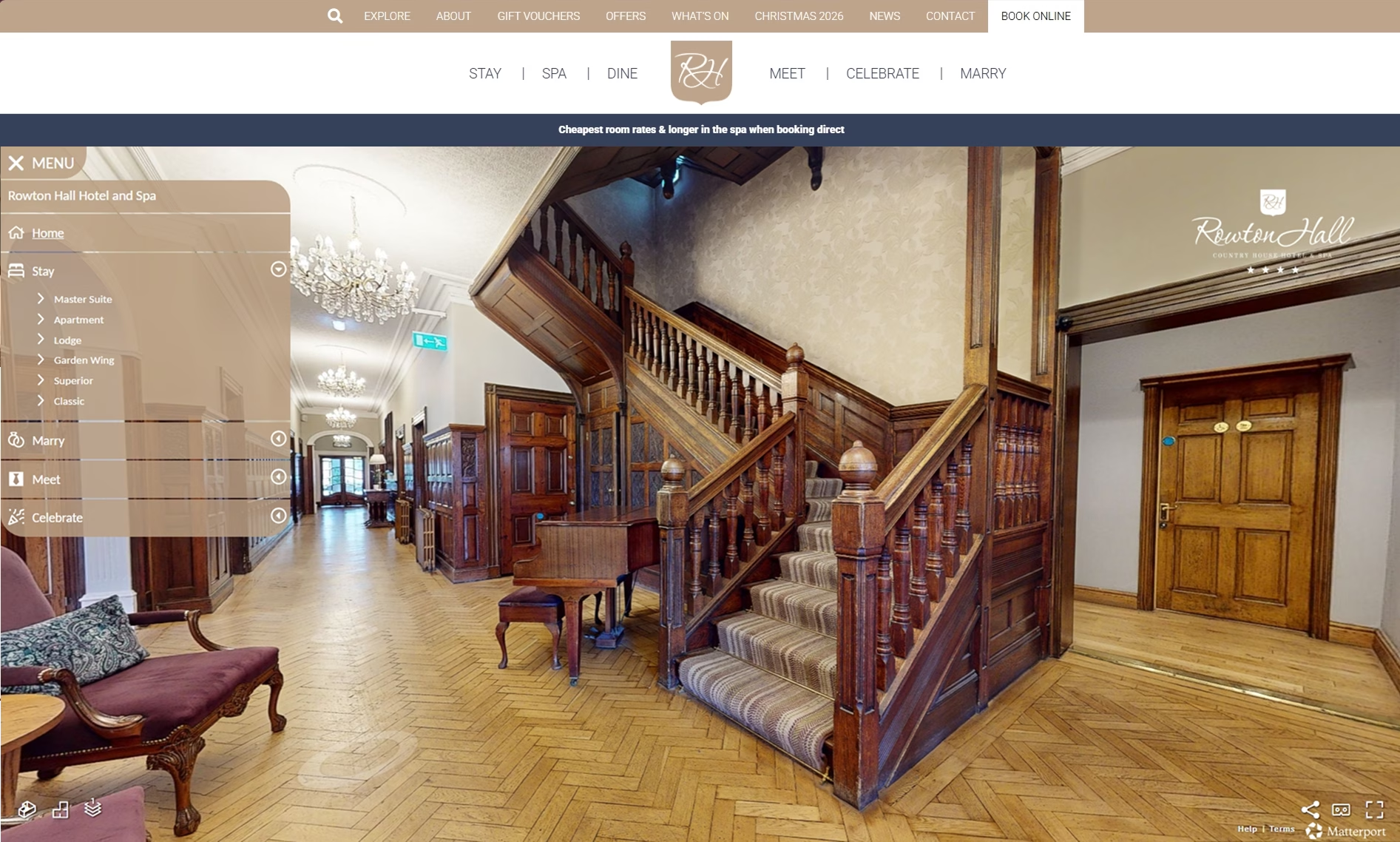
Whether you’re showcasing a hotel, wedding venue, property, showroom or commercial building, adding your Infinity Tour to your website is a fantastic way to engage visitors, inspire confidence and help turn interest into enquiries.
And the good news? It’s surprisingly easy to do.
You don’t need to install any special software or download large files. Your Infinity Tour is hosted online and can be displayed directly within your website.
This guide will show you how.
Embedding simply means displaying your Infinity Tour directly on a webpage, allowing visitors to explore your space without leaving your website.
Think of it like adding a YouTube video to a page, except instead of watching a video, your visitors can interact with your space.
Depending on the features included in your Infinity Tour, visitors can:
Explore your rooms, spaces and facilities in immersive 3D.
Navigate between different areas using interactive menus.
Discover information, images, videos and interactive hotspots.
View branded content and additional experiences.
Explore from their desktop, tablet or smartphone.
Best of all, your website remains your website. The tour simply becomes another engaging part of the experience.
Before you begin, make sure you have:
Your Infinity Tour link: The unique web address provided by Apollo3D.
Access to your website: You’ll need permission to edit the page where your tour will appear.
A place for your tour: This might be your homepage, a dedicated Virtual Tour page, or a page showcasing your facilities.
If someone else manages your website, simply send them this guide along with your tour link. They’ll know what to do.
The simplest way to display your Infinity Tour is with a small piece of website code called an iframe.
An iframe acts like a window within your webpage, displaying your fully interactive tour inside it.
Your website developer can use the following example:
					<iframe
  src="YOUR-INFINITY-TOUR-LINK"
  width="100%"
  height="600"
  style="border:0;"
  title="Explore our virtual tour"
  allow="fullscreen"
  allowfullscreen
  loading="lazy">
</iframe>
Important: Replace YOUR-INFINITY-TOUR-LINK with the complete Infinity Tour URL supplied by Apollo3D, including https://.
Width 100%: Makes the tour fill the available width of your webpage.
Height 600: Displays the tour at a height of 600 pixels.
Border 0: Removes the frame border for a clean, professional appearance.
Allow fullscreen: Lets visitors expand the experience to fill their screen, where supported.
Lazy loading: Helps reduce initial page loading by delaying the tour’s load until needed.
Your tour should now appear directly within your webpage, ready for your visitors to explore.
You don’t need to be a web developer to embed your tour. Most popular website builders make it straightforward.
Log in to your WordPress dashboard.
Open the page where you’d like your Infinity Tour to appear.
Click the + button to add a new block.
Search for and select Custom HTML.
Paste your Infinity Tour iframe code into the block.
Preview the page to check the tour displays correctly.
Click Update or Publish.
Using Elementor? Simply drag an HTML widget onto your page and paste in the iframe code.
Log in to your Wix website editor.
Open the page where you’d like the tour to appear.
Select Add Elements.
Find Embed Code and choose the HTML embed option.
Paste your iframe code.
Resize the embedded element to suit your page layout.
Preview and publish your changes.
Log in to your Squarespace website.
Navigate to the page where you’d like the tour.
Edit the page and add a Code Block.
Paste your Infinity Tour iframe code.
Configure the block to render the HTML, where required.
Save your changes and preview the page.
Please note: Squarespace code embedding availability may depend on your subscription and editor configuration.
Open your Shopify admin.
Navigate to the page or theme section where you’d like the tour.
Use the HTML/source editor or an appropriate Custom Liquid section.
Paste in your Infinity Tour iframe code.
Save and preview the page.
Some Shopify themes may require adjustments to the section width or height.
If your website uses a different content management system, the process is usually very similar.
Look for an option called Custom HTML, Embed, HTML Widget or Code Block.
Paste the iframe code into that section, save your changes and you’re ready to go.
Your website visitors will be using different devices, from large desktop monitors to tablets and smartphones.
We recommend allowing your Infinity Tour to adapt to the width of the screen, rather than setting a fixed width.
For a more polished, responsive presentation, your website developer can use this code:
					<div style="
  width:100%;
  aspect-ratio:16/9;
  min-height:350px;">

  <iframe
    src="YOUR-INFINITY-TOUR-LINK"
    title="Explore our virtual tour"
    style="width:100%;height:100%;border:0;"
    allow="fullscreen"
    allowfullscreen
    loading="lazy">
  </iframe>
</div>
This creates a widescreen display that adjusts to the available page width.
Our tip: Give your tour plenty of space! A larger display makes it easier for visitors to enjoy the full interactive experience.
For websites with complex navigation menus or multiple tour features, a taller frame may provide an even better experience.
Your virtual tour deserves to be seen, so don’t hide it away!
Here are a few ways to make the most of it.
Homepage
Give visitors an immediate opportunity to explore your space. A prominent ‘Take a Virtual Tour’ section can be a great addition to your homepage.
Dedicated Virtual Tour Page
Create a page entirely dedicated to your Infinity Tour, giving visitors a larger viewing experience with minimal distractions.
Rooms & Facilities Pages
Showcase individual spaces alongside photographs, descriptions and booking information.
Events & Weddings Pages
Help prospective customers explore your venue, visualise their event and make more confident booking decisions.
Property & Development Pages
Allow prospective buyers, tenants and investors to explore a property or development remotely.
Explore Our Virtual Tour
Step Inside
Take a Look Around
Explore Our Spaces in 3D
Discover Our Venue
These buttons can link to the page containing your embedded tour or open the standalone Infinity Tour directly.
Don’t want to embed the tour directly into your webpage? No problem.
You can simply add a button, image or text link that opens your Infinity Tour separately.
For example:
Take a Virtual Tour – Explore Our Space in 3D
This is particularly useful when you want to keep your website pages lightweight or give visitors the largest possible viewing area.
It’s also a convenient way to share your experience through emails, digital brochures, QR codes and social media.
Most embedding issues are straightforward to resolve.
My tour isn’t showing up.
Check that the URL in your iframe is correct and includes https://. Also check that the page builder supports embedded content and that the link you’ve been given is intended for embedding.
My tour looks too small.
Increase the height of your iframe or adjust the width of the surrounding website section.
My tour appears cut off on mobile.
Your website layout may need a mobile-specific adjustment. Try increasing the height of the embed area or giving visitors a fullscreen option.
The tour is taking a while to load.
Interactive 3D experiences contain detailed visual content. Loading times may vary depending on the complexity of the tour and the visitor’s internet connection.
I can see the tour, but some features don’t behave as expected.
Test the standalone tour link first. If everything works there, the issue may relate to the iframe dimensions, fullscreen permissions or your website’s settings.
If you’re unsure, we’re happy to help.
At Apollo3D, we don’t just create incredible virtual experiences. We want to make sure they’re working brilliantly for you, too.
Whether you’re adding your Infinity Tour to WordPress, Wix, Squarespace or a completely bespoke website, our team is happy to assist with the embedding process.
If you have a website developer, feel free to forward this guide directly to them.